
- Sign in to ChartQi and open Select environment.
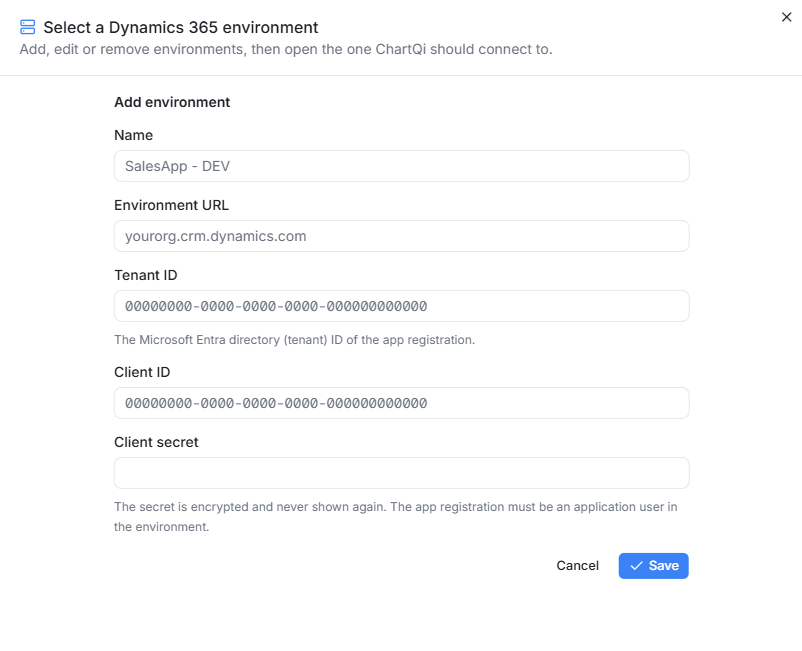
- Choose Add environment and fill in the environment name, URL (eg. https://contoso.crm6.dynamics.com), and Entra app registration and client secret set up by your administrator.
- Click Save to save the connection details. The client secret entered is encrypted and never shown again. The system will perform test connection to verify the app access to the environment.
- Select Connect. ChartQi connects and reads the environment's metadata eg. tables and fields.
 (opens full size in a new tab)
Which security roles are needed?
ChartQi can only see what the connection can see. To build charts, the connection needs read access to the tables you want to chart. To deploy dashboards, it also needs permission to import solutions, usually the System Customizer role.
Troubleshooting
- "Environment not found": check the URL, including the region (crm, crm4, crm6 and so on).
- "Access denied": the account or application user has no Dynamics 365 licence or security role in that environment.
- Secrets are stored encrypted. To rotate a client secret, edit the environment and paste the new value.