
Microsoft Teams
- Select Deploy in the dashboard canvas toolbar.
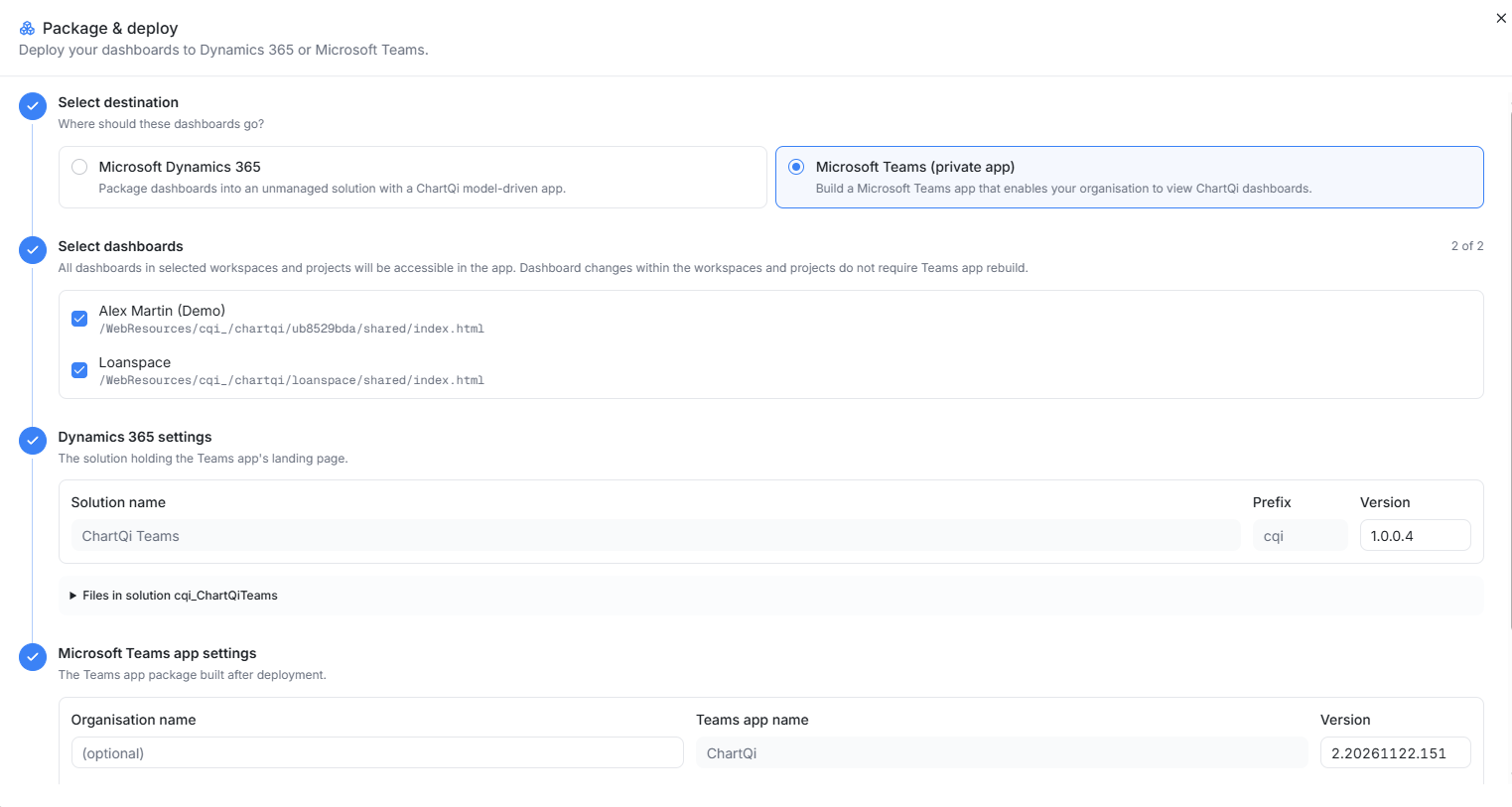
- 'Package & deploy' dialog appears, select Microsoft Teams destination.
- Select the workspace/project to deploy. You can select only those already deployed to Dynamics 365. All dashboards deployed within workspaces/projects are automatically reflected in Teams, Teams app redeployment is not required.
 (opens full size in a new tab)
- ChartQi will generate a new Dynamics 365 solution named 'ChartQi Teams' containing the Teams app landing page.
- You may enter your Organisation name to be included in the Teams app name. Update the version number to a higher number than previous one.
- Specify the target Dynamics 365 environment URL to be connected by the Teams app. All ChartQi dashboards and Teams Dynamics 365 solutions must be deployed to the specified Dynamics 365 environment. You would need to execute the deployment yourself if the URL is not one of connected environment in ChartQi.
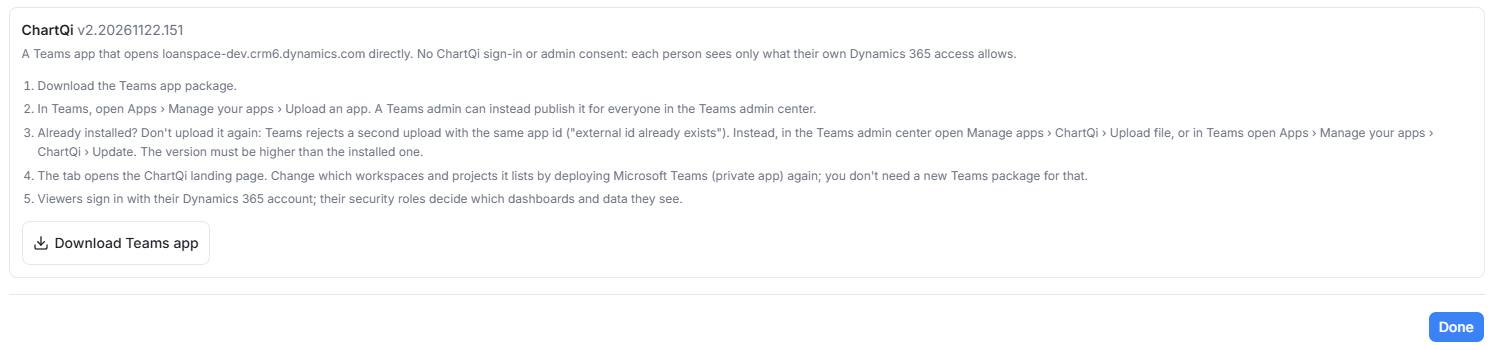
- Teams App Id will be generated for you that uniquely identifies the app. Each environment gets one unique Id. Uploading first time to your organisation Teams will create the app. Subsequent app updates must use the Teams Update function.
- Select Deploy to start deploying. Upon successful deployment, click on Download Teams app for upload to your organisation Teams.
 (opens full size in a new tab)
Uploading Teams app for your organisation
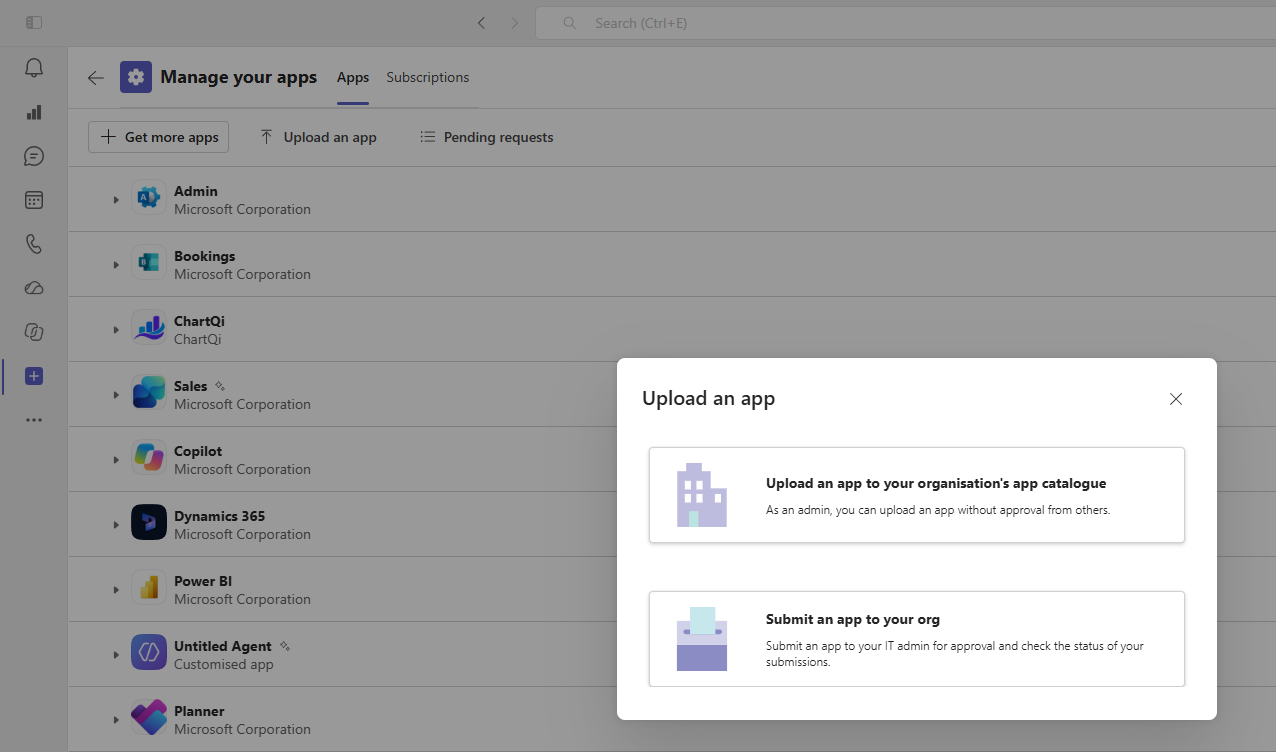
- Click on Plus icon, then Manage your apps gear icon on the top right.
- Select Upload an app to upload the generated Teams app.
 (opens full size in a new tab)
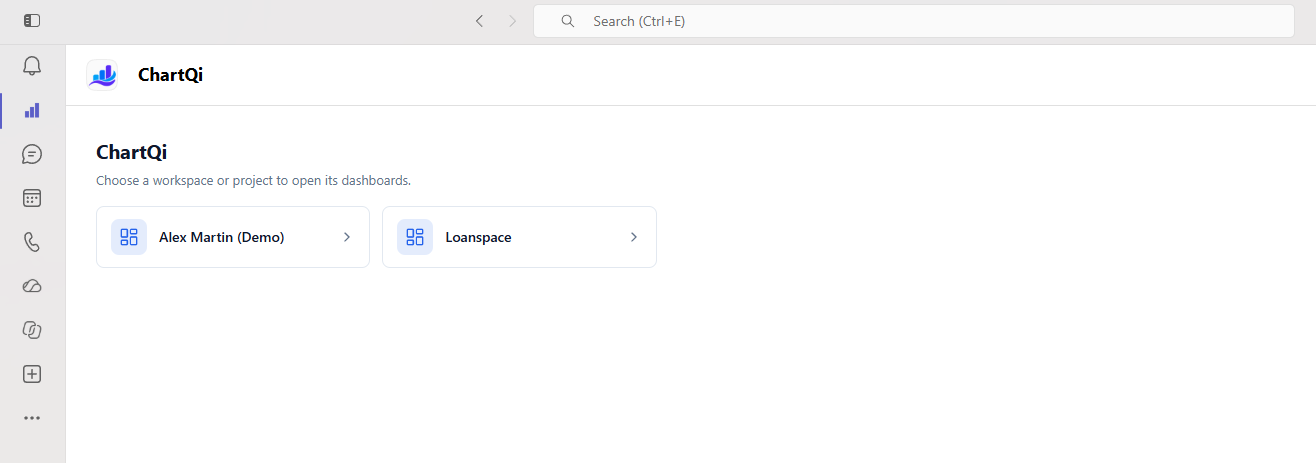
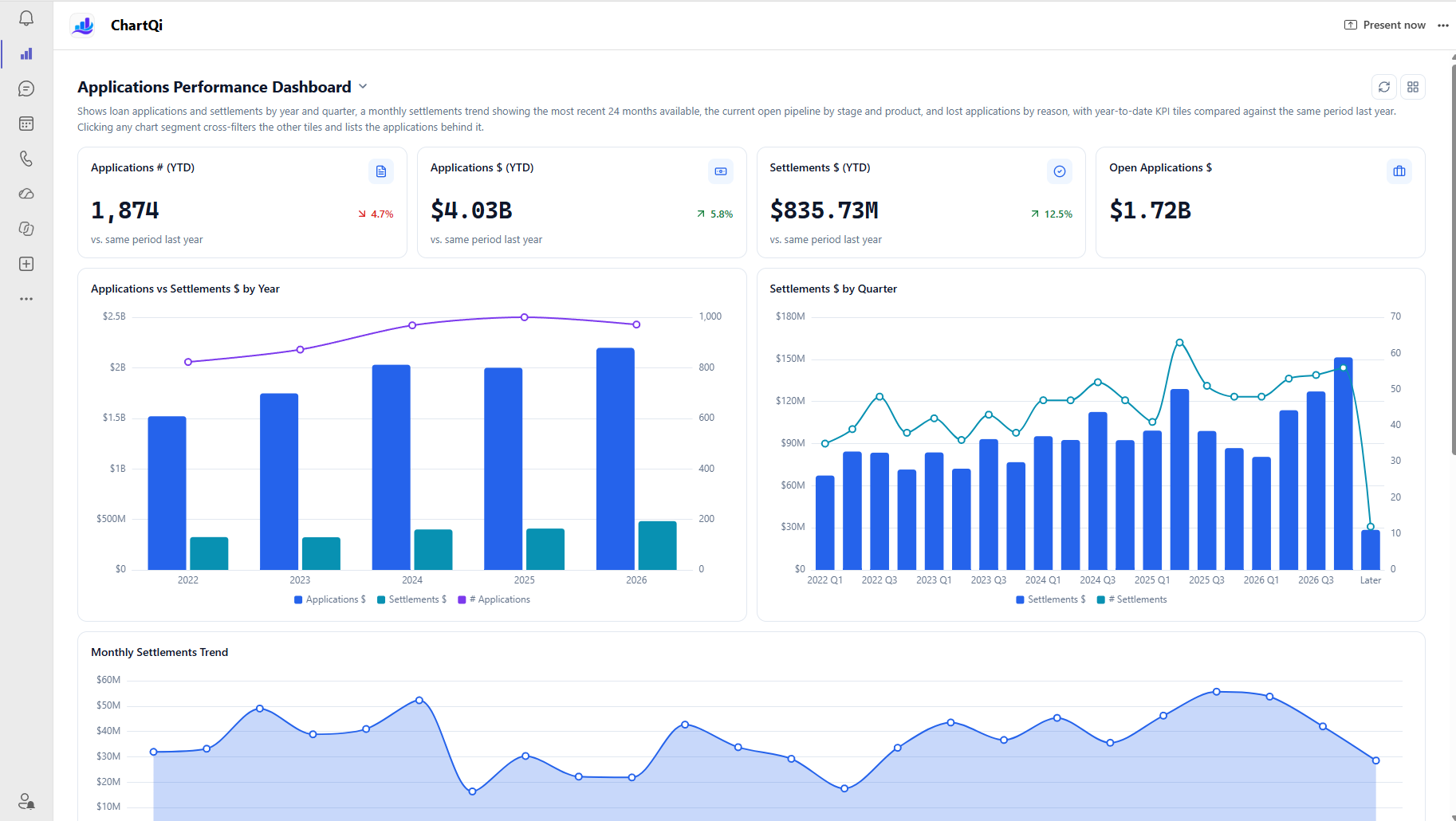
Once uploaded, user can find the app, add to their Team, and pin to the left side bar if needed.
 (opens full size in a new tab)
 (opens full size in a new tab)
Always deploy to a test environment first and check the dashboard before promoting it to production.